
Regular website backups protect your website from hacks, server failures, failed updates and accidental data loss. Learn why they matter, how often to back up, and what every backup includes.
Every website owner has heard the advice at some point: back up your website. It sounds simple enough, yet a surprising number of people put it off until something goes wrong. A website backup is essentially a copy of your site’s files and database, saved somewhere safe, so that if anything happens to your live site you can restore it to a working state without starting from scratch.
The truth is, most people don’t think about backups until they desperately need one. And by then, it’s often too late. A study on website backup habits found that up to 40% of all websites aren’t backed up at all, leaving a huge number of site owners exposed if something goes wrong.
Why Should I Back Up My Website?
Think of a website backup the same way you’d think about insurance. You hope you never need it, but you’ll be very glad it’s there the day something goes wrong. Websites can break for all sorts of reasons: a plugin update that clashes with your theme, a hacker gaining access, a hosting server failure, or even a simple human error where someone deletes the wrong file.
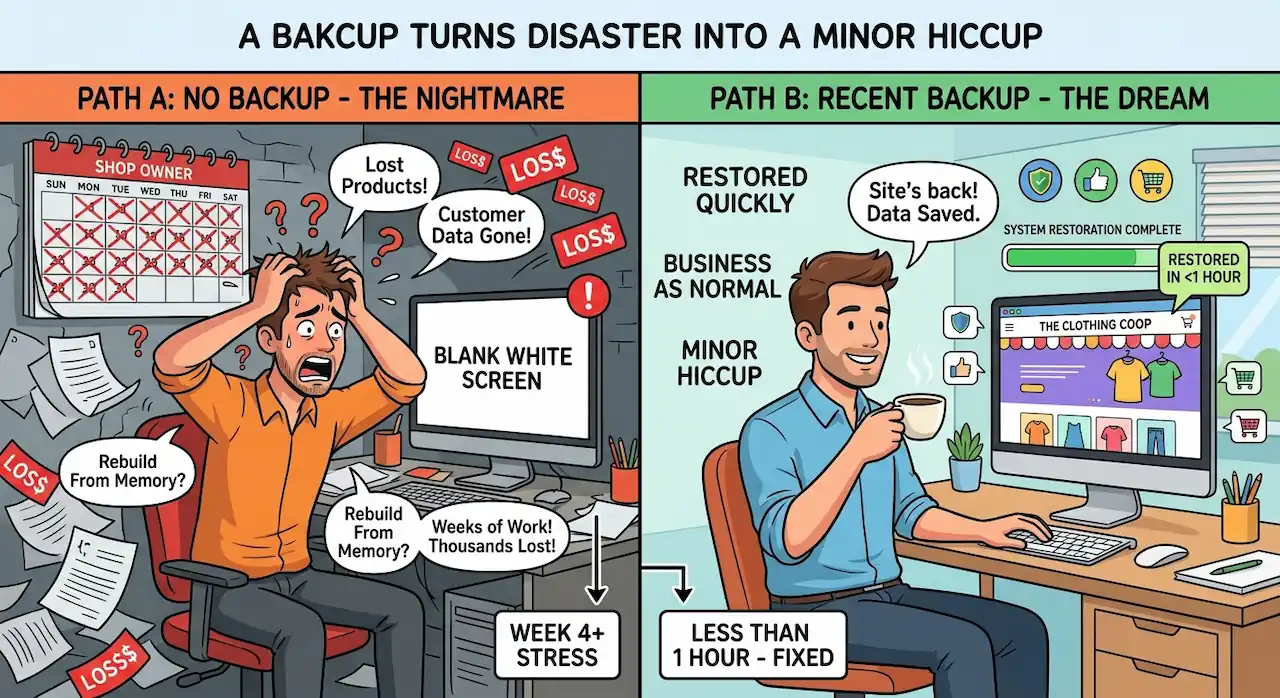
Here’s a real example of why this matters. Imagine a small online shop that’s been running for years, building up product listings, customer reviews and blog content. One day, a routine software update goes wrong and the entire site goes down, showing nothing but a blank white screen. Without a backup, the shop owner would need to rebuild the site from memory, which could take weeks and cost thousands in lost sales. With a recent backup on hand, the site can be restored within the hour and business carries on as normal. That’s the entire point of a backup. It turns a potential disaster into a minor hiccup.
How Do I Back Up My Website?
There are a few different ways to go about backing up your website, and the right approach often depends on what platform your site is built on.
If you’re running a WordPress website, there are several plugins available that can create automatic backups for you. These typically run on a schedule and can send copies of your site to cloud storage such as Google Drive, OneDrive, or even a local NAS storage device. This is a decent starting point and better than having no backup at all.
That said, the better option is to have a full hosting account backup, which is usually provided by your website hosting company. Rather than relying solely on a plugin sitting inside your website, a hosting account backup captures everything on the server level, including your files, database, email accounts and configuration settings. It tends to be more reliable, more complete, and doesn’t depend on a plugin continuing to work correctly every single time it runs.
What Should A Website Backup Include?
A proper website backup really only needs to cover two main things: your website files and your database. In most cases, this means your public_html folder (or whichever directory holds your site’s files) along with the full database, including all of its tables.
Your website files include everything from your theme, images, uploaded documents and any custom code. Your database, on the other hand, holds the actual content, such as blog posts, page text, product details, user accounts and settings. Missing either one means you don’t have a complete backup. A backup of just your files without the database is a bit like keeping the shell of a car without the engine. You need both parts working together for the site to actually function once it’s restored.
How Long Should A Website Backup Be Kept?
There is no single rule that fits every website, but in most cases, keeping 30 days worth of backups is a sensible approach. This gives you enough of a window to investigate when a problem first appeared, which isn’t always obvious straight away.
Sometimes an issue on a website doesn’t show up immediately. A file might get corrupted or a plugin conflict might sit quietly in the background for a week or two before it actually causes a visible problem. If you’re only keeping backups from the last day or two, you might find that every single one you have already contains the fault. Having 30 days of history means you can go back far enough to find a clean, working version of your site before the issue crept in.
Warning On Some Website Backup Methods
Here’s something that doesn’t get talked about enough. Some website maintenance providers install backup plugins that create backups and store them directly on the website’s own files directory. This might sound convenient, but it’s actually a serious problem waiting to happen.
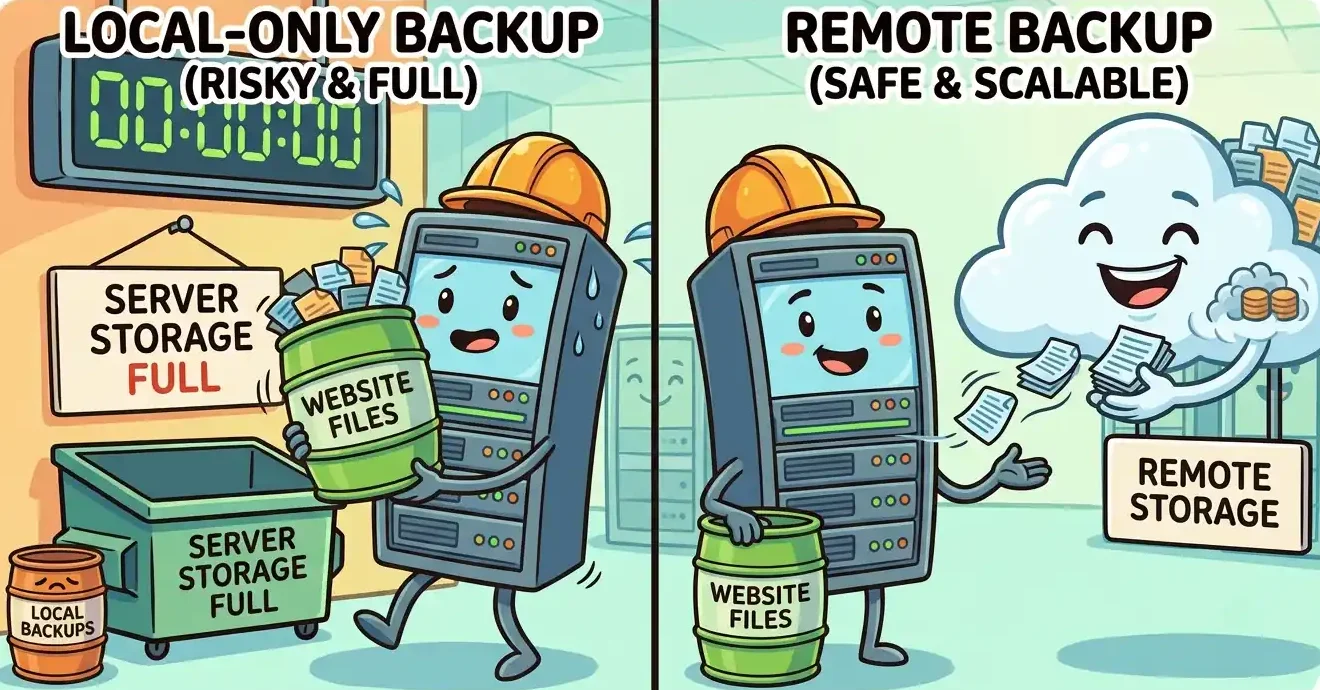
If your website ever gets hacked or compromised, and your backups are sitting in the same place as the rest of your website files, those backups are compromised too. You’d essentially be trying to restore your site using a copy that’s just as infected as the version you’re trying to fix. It defeats the entire purpose of having a backup in the first place.
This is why it’s essential that website backups are stored off site, away from the website itself. This should be a non-negotiable part of any backup strategy. An off-site backup simply means the copy of your website is stored somewhere completely separate from your hosting server, such as a different cloud storage provider, a remote server, or a dedicated backup service. That way, whatever happens to your live website, your backup remains untouched and safe.
How Long Does It Take To Restore A Website From A Backup?
This depends largely on the size of your website and where the backup is stored. When backups are kept on the same network as your hosting account, meaning there’s no need to upload or download large files across the internet, restoring a site can often be done within about 30 minutes in most cases.
As a general guide, it’s reasonable to aim for around an hour or so for a typical website restore, though this can vary depending on how large your database is and how many files need to be put back in place. Larger websites with years of content, images and transaction history will naturally take a bit longer than a small brochure site with a handful of pages. The key takeaway is that with the right setup, restoring a website doesn’t need to be a lengthy or stressful process.
Conclusion To Website Backups
Backing up your website isn’t the most exciting part of running an online presence, but it’s one of the most important. Things go wrong, whether that’s a bad update, a hacking attempt, or simple human error, and having a recent, complete, off-site backup means you can recover quickly without losing sleep over it. Aim for regular backups, keep at least 30 days of history, and make sure your backups live somewhere separate from your website itself. It’s a small habit that can save you an enormous amount of stress, time and money down the line.
How Can Webluno Assist?
If all of this sounds like more than you’d like to manage yourself, that’s completely understandable. Webluno includes website backups as standard with all of our website maintenance packages, so you don’t have to think about plugins, storage locations or restore times at all. We handle the entire process for you, storing your backups securely off site and keeping a healthy history on hand, so that if anything ever goes wrong with your website, you’ve got a safe, recent copy ready to go. It’s one less thing to worry about, and one more reason to leave your website’s upkeep in good hands.
Frequently Asked Questions
Does having a website backup protect me from being hacked in the first place?
No. A backup is a recovery tool, not a prevention tool. It won’t stop hackers getting in, but it does mean that if they do, you can wipe the compromised site and restore a clean version rather than paying a ransom or rebuilding from scratch.
Can I back up my website myself without any technical knowledge?
To a basic degree, yes, especially with a WordPress plugin that runs on autopilot. But setting up full hosting account backups, checking they’ve actually run correctly, and knowing how to restore one under pressure usually needs at least some technical familiarity, which is why many site owners hand this over to their host or a maintenance provider.
Will backing up my website slow it down or use up my hosting resources?
A well-configured backup, especially one run at server level by your host, shouldn’t have any noticeable impact on site speed. Poorly configured plugin-based backups running during busy traffic periods can occasionally cause slowdowns, which is another reason scheduling backups for quiet, off-peak hours is worth doing.
What’s the difference between a website backup and website version control?
A backup is a full snapshot of your site at a point in time, meant for disaster recovery. Version control (more common in custom-coded sites) tracks incremental changes to code over time, meant for development. They solve different problems, and a website can genuinely benefit from having both.
Should I test my backups, or is it enough just to have them?
Definitely test them. A backup that hasn’t been tested is a bit of an unknown quantity. It’s worth doing a trial restore every so often (to a staging site, not your live one) just to confirm the backup file is complete, isn’t corrupted, and actually works when you need it to.


